

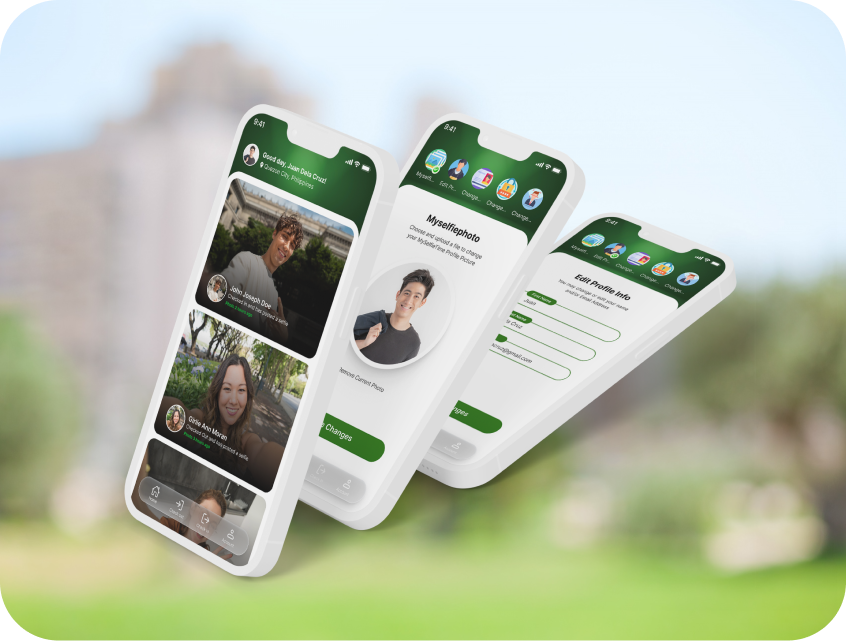
The MySelfieTime mobile app is a secure digital biometric system that allows employees to
record their time-in and time-out using selfie verification and GPS location validation.
This guide explains how to properly download, activate, and use the app to ensure your
attendance is accurately recorded and validated by your company.
Why Companies Are Moving Beyond Traditional Attendance Systems
For many years, companies relied on:
- Fingerprint biometric machines
- Manual logbooks or manual time-in/time-out encoding
- Guard clock systems
- Proximity or RFID cards
While these systems work, they often involve:
- Hardware cost and maintenance
- Installation per branch
- Card loss or sharing
- Manual corrections
- Limited real-time visibility
Why Companies Use MySelfieTime
Instead of physical hardware, MySelfieTime captures:
- Selfie photo verification
- GPS location validation
- Exact timestamp recording
- Secure cloud-based attendance storage
This ensures reliable and accurate attendance tracking while giving employees a fast, seamless, and convenient mobile experience.
Step 1: Download the MySelfieTime App
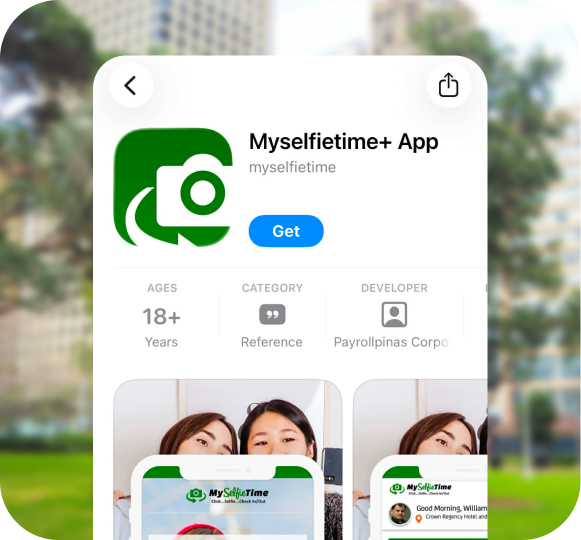
To install the app, use the official download links below:
📲 For Android Devices
👉 https://play.google.com/store/apps/details?id=com.myselfie.myselfietest🍎 For iPhone Devices
👉 https://apps.apple.com/ph/app/myselfietime-app/id6504715863Tap the appropriate link and complete the installation on your device.
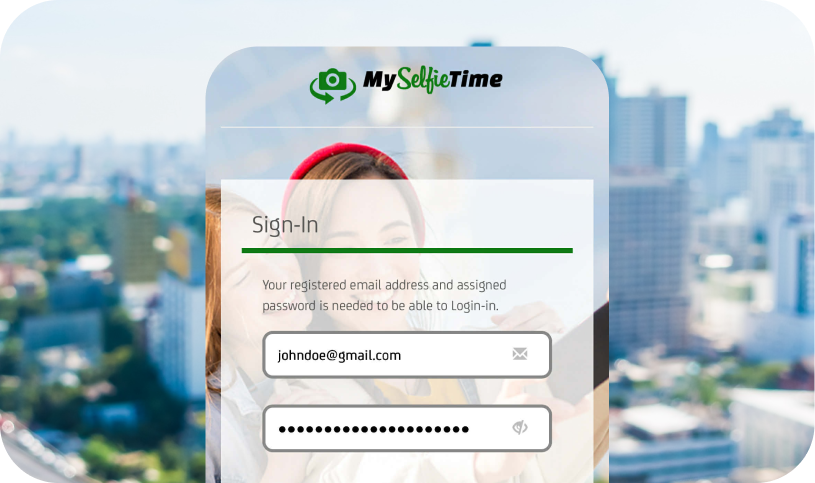
Step 2: Sign Up or Log In
After installing the app:
- If your company requires mobile registration, tap Sign Up and enter your required details
- If your account has already been created by your company, simply log in using the credentials provided by your HR or administrator
Make sure that the information entered matches your official company records.
Step 3: Enter Your Passcode Key (One-Time Setup)
To activate your account under your company’s attendance system, you must enter your Passcode Key.
The Passcode Key:
- Is provided by your company administrator or HR manager
- Links your account to your company's attendance system
- Validates your Check In and Check Out records
- Is required only once during initial setup
How to Enter Your Passcode Key:
- Go to Account Settings
- Tap Passcode Key
- Enter the key provided by your company
- Tap Save
After successful entry, you do not need to enter the Passcode Key again unless instructed by your
company.
Important:
If the Passcode Key is not entered during setup, your Check In and Check Out records will
remain in Demo mode and will not be validated by your company.
Step 4: Allow Required Permissions
For accurate attendance capture, allow the following permissions when prompted:
- Camera access — required for selfie verification
- Location access (GPS) — required for attendance validation
Without these permissions, Check In and Check Out will not function properly.

Step 5: How to Selfie Check In
To record your attendance:
- Open the MySelfieTime app
- Tap Check In
- Wait while the system detects your nearest known location
- Take a clear live selfie
- Confirm submission
Before confirming, review the location displayed at the lower portion of the screen. Ensure that the GPS location is accurate.
Once successful, the system records:
- Date and time
- GPS coordinates
- Selfie verification
- Device data
Step 6: How to Selfie Check Out
At the end of your work period:
- Open the app
- Tap Check Out
- Verify your GPS location
- Take a clear live selfie
- Confirm submission
Refreshing the Timeline
If your attendance does not immediately appear:
- Simply pull down on the screen to refresh
- Wait for the page to reload and display the latest attendance feed
This is helpful when the internet connection is unstable or when the page does not automatically update.
Important Reminders
To ensure your attendance is properly validated:
- Enter your Passcode Key during initial setup
- Enable GPS before Check In/Out
- Allow camera access
- Confirm successful submission
- Do not close the app while processing
Failure to complete these steps may result in unvalidated attendance records.
Secure Digital Biometric Attendance — Without Hardware
Unlike biometric machines, guard clocks, proximity cards, or manual attendance encoding,
MySelfieTime provides a modern mobile-first solution.
By combining selfie verification, GPS validation, timestamp recording, and cloud storage, companies
can achieve accurate and validated attendance monitoring without investing in physical hardware.
For more information, visit: www.myselfietime.com


